AI Texture Generator Tools
Turn images into textures,and export your material maps.
Free image tools are live. AI text generation is coming later.
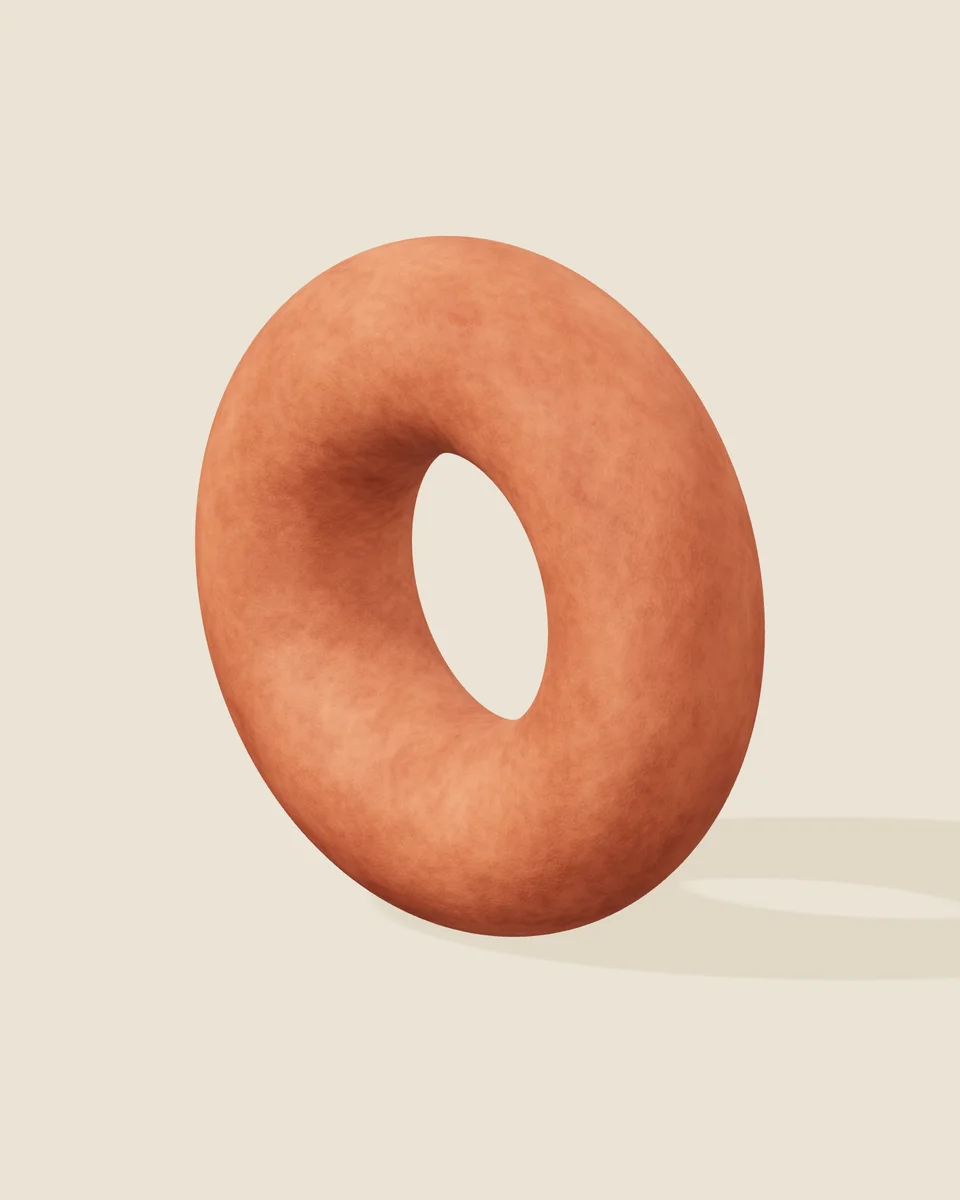
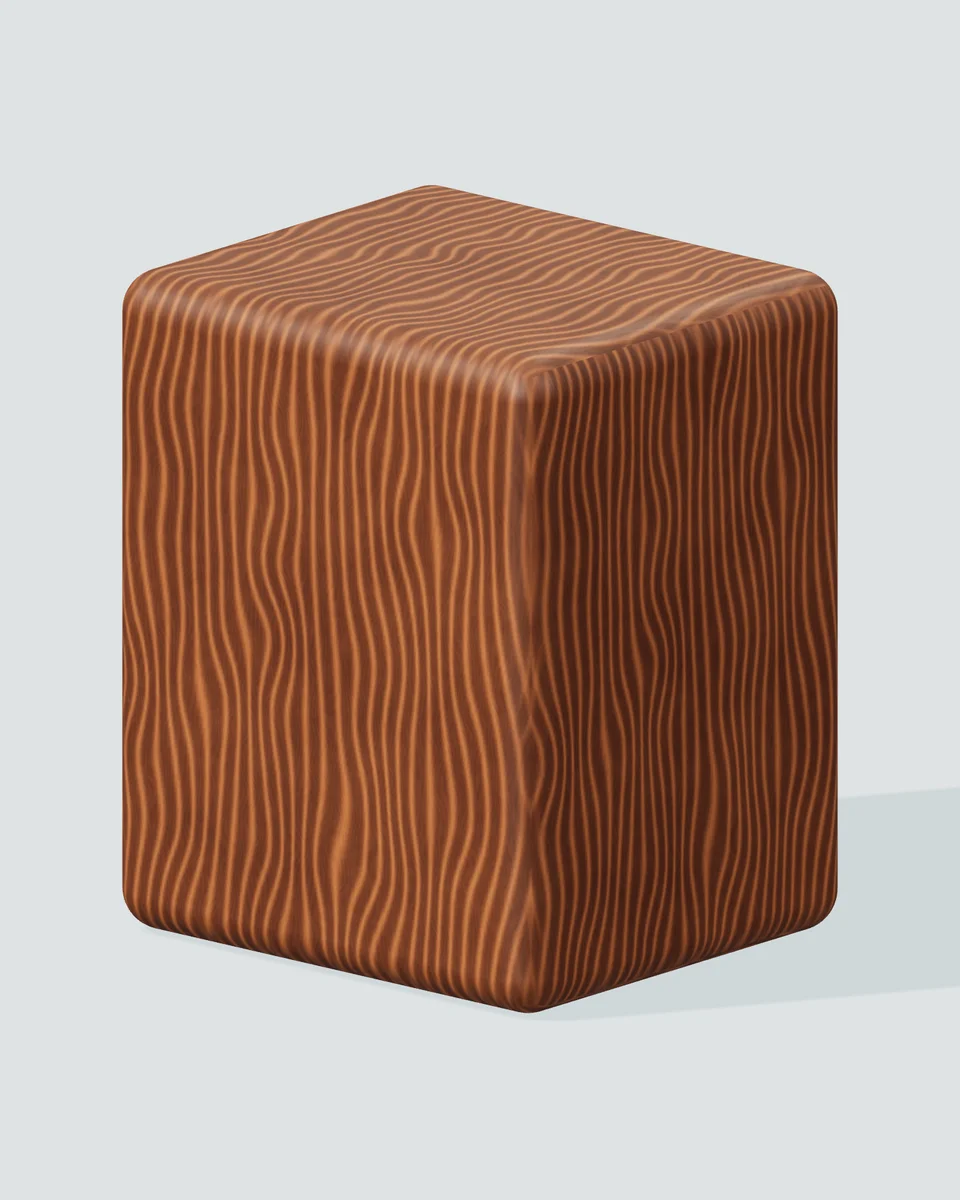
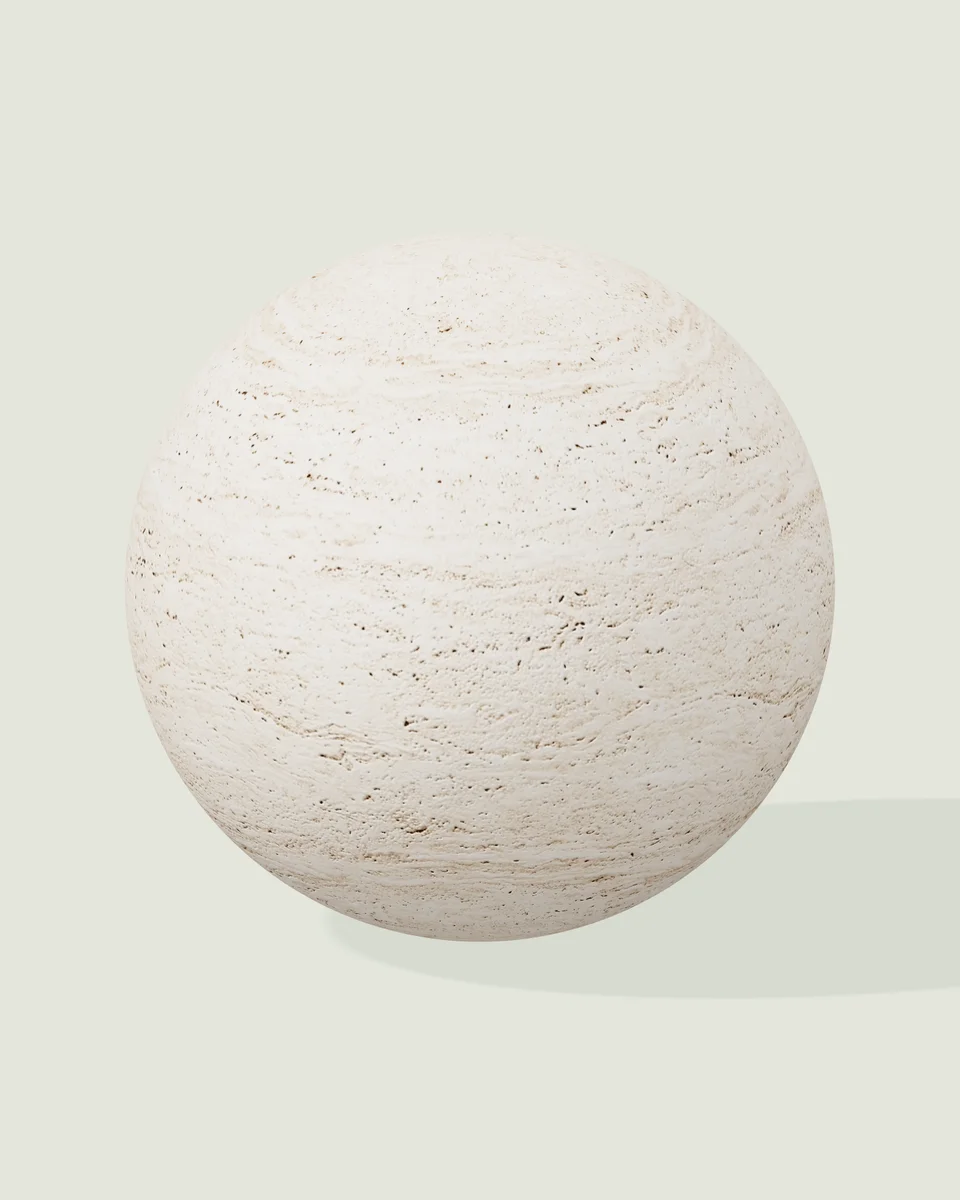
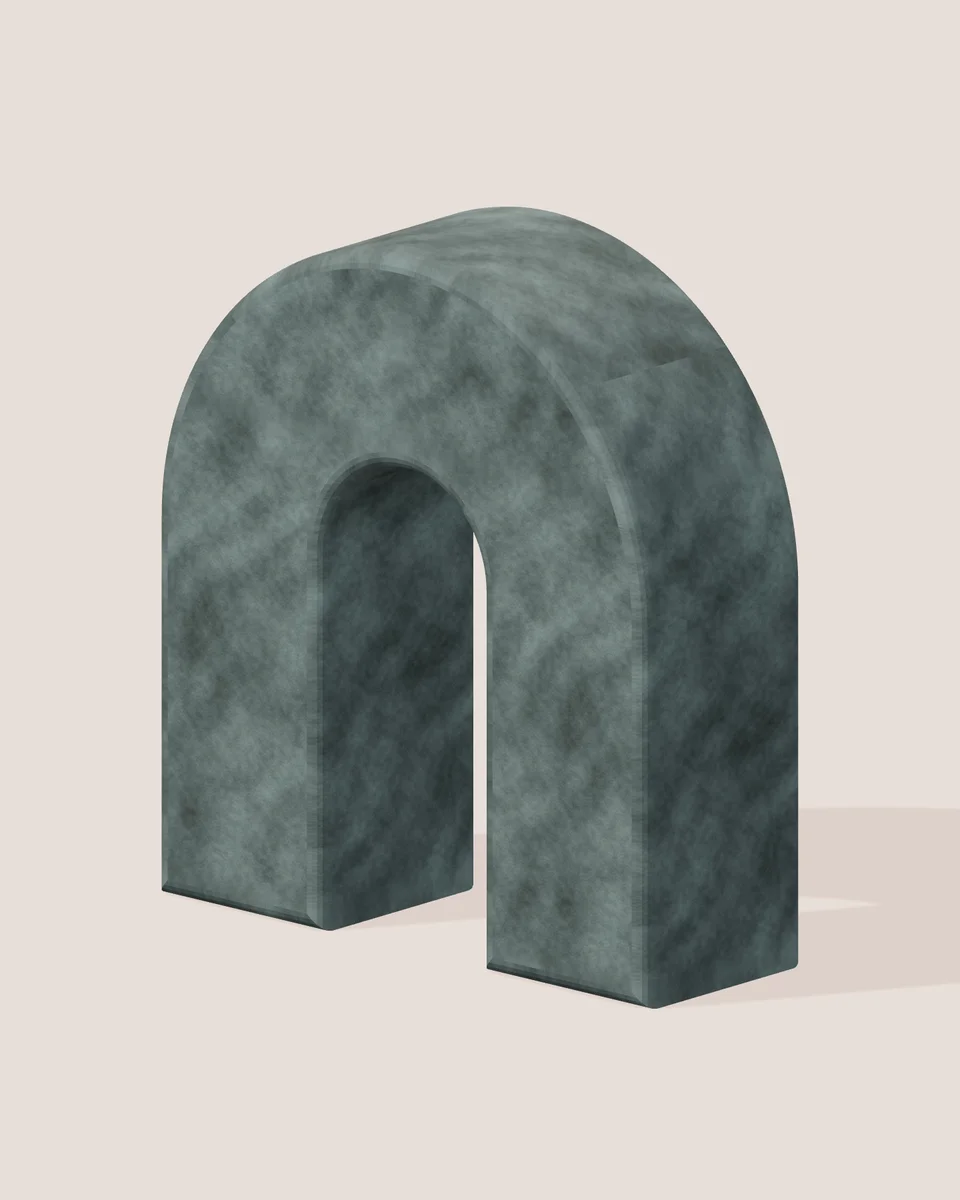
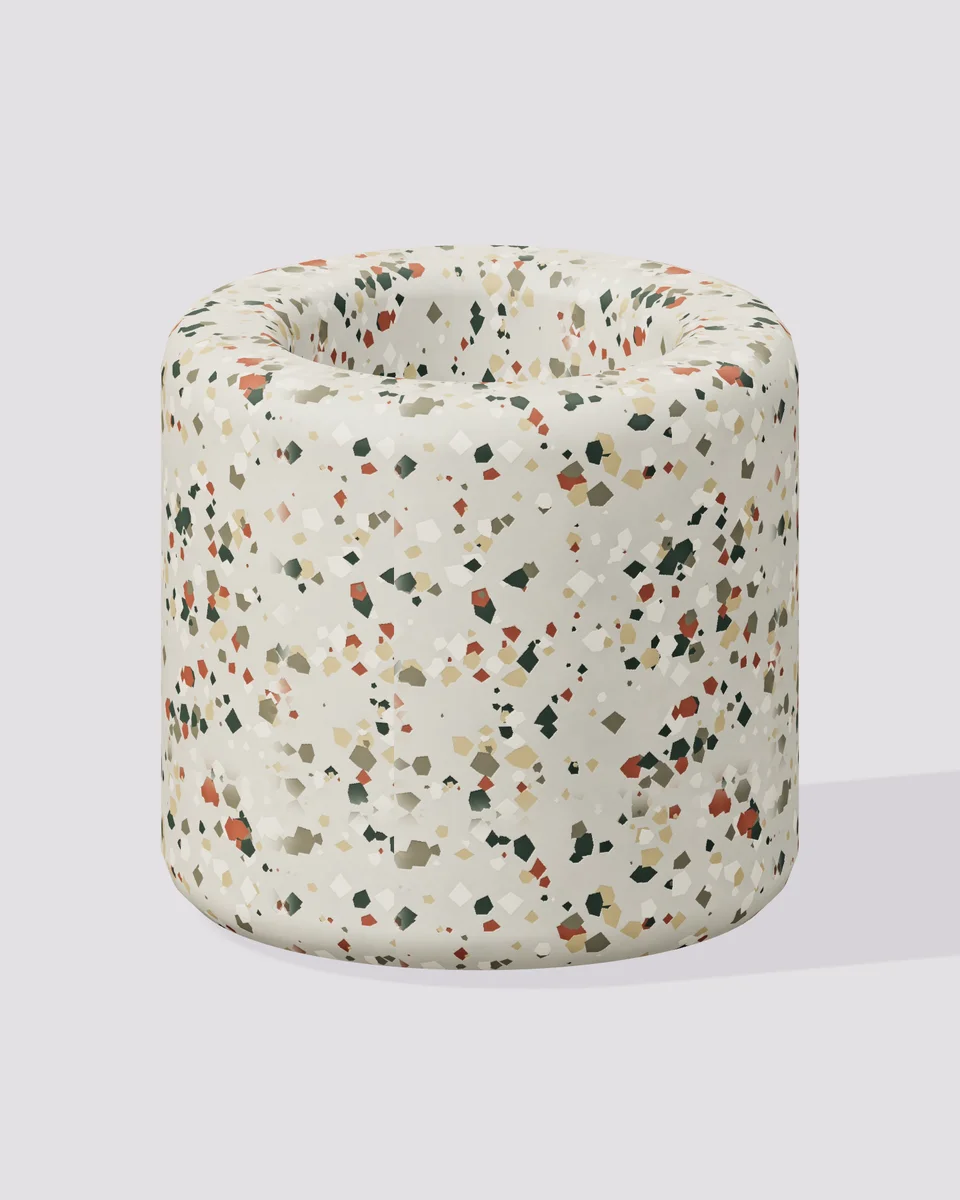
Material studies · Travertine uses an AI-generated base image. Other surfaces are procedural.
A material starts with an image.
Make every detail your own.
Explore surfaces for games, 3D scenes, and visual projects. Start with a surface image, build a set of material maps, and see how the texture looks under light and across a repeating surface—all in one workspace.
Your surface.
Every detail, explored.
Move from a flat image to a material you can inspect. Fine-tune the relief and finish, check the repeat, then export maps for the tools you already use.
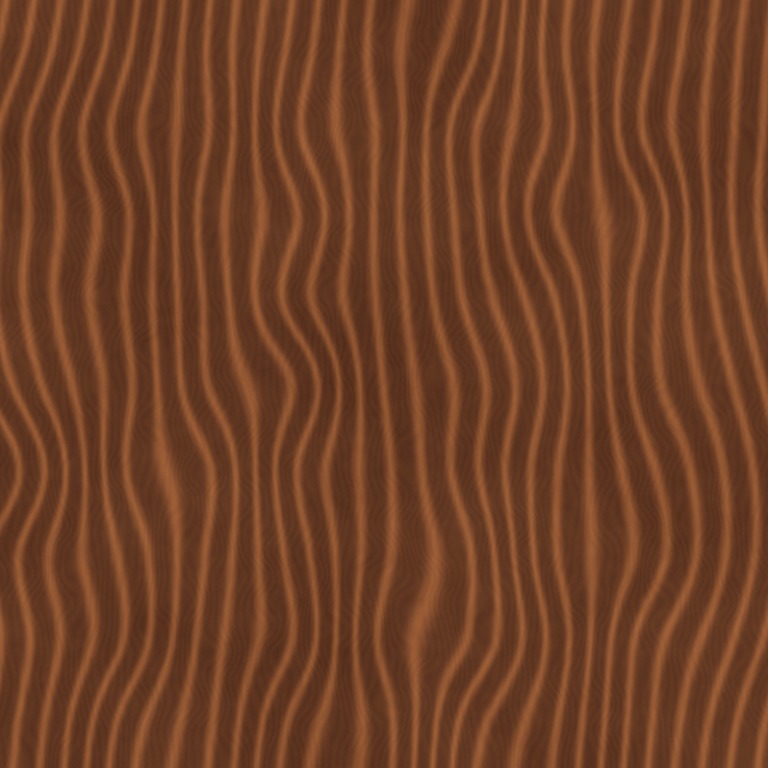
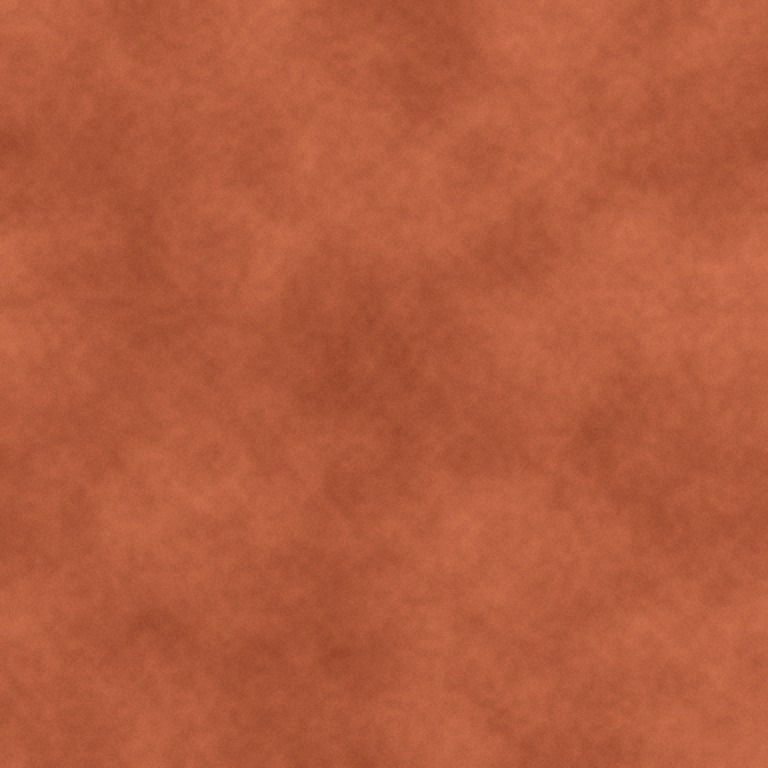
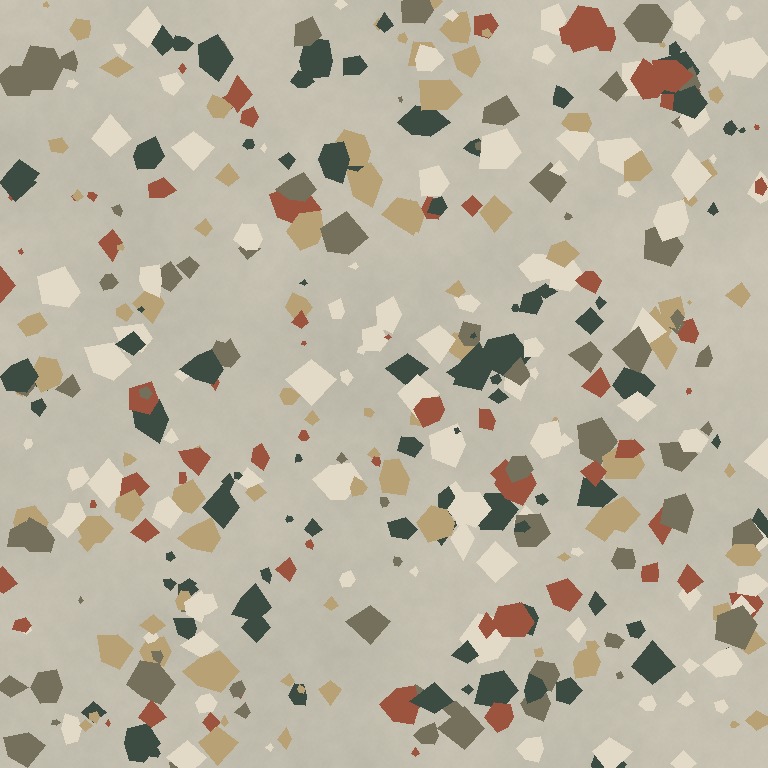
TRAVERTINE / MATERIAL STUDY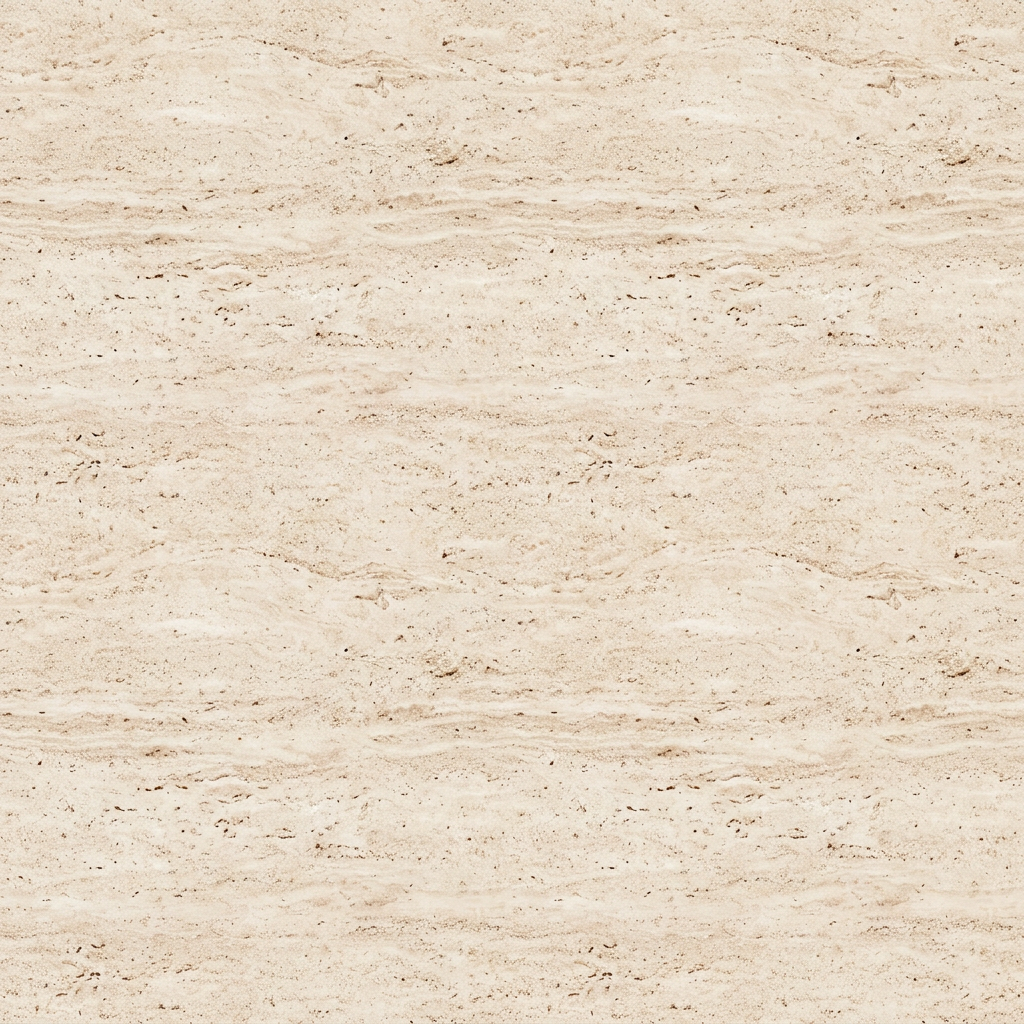 Base color
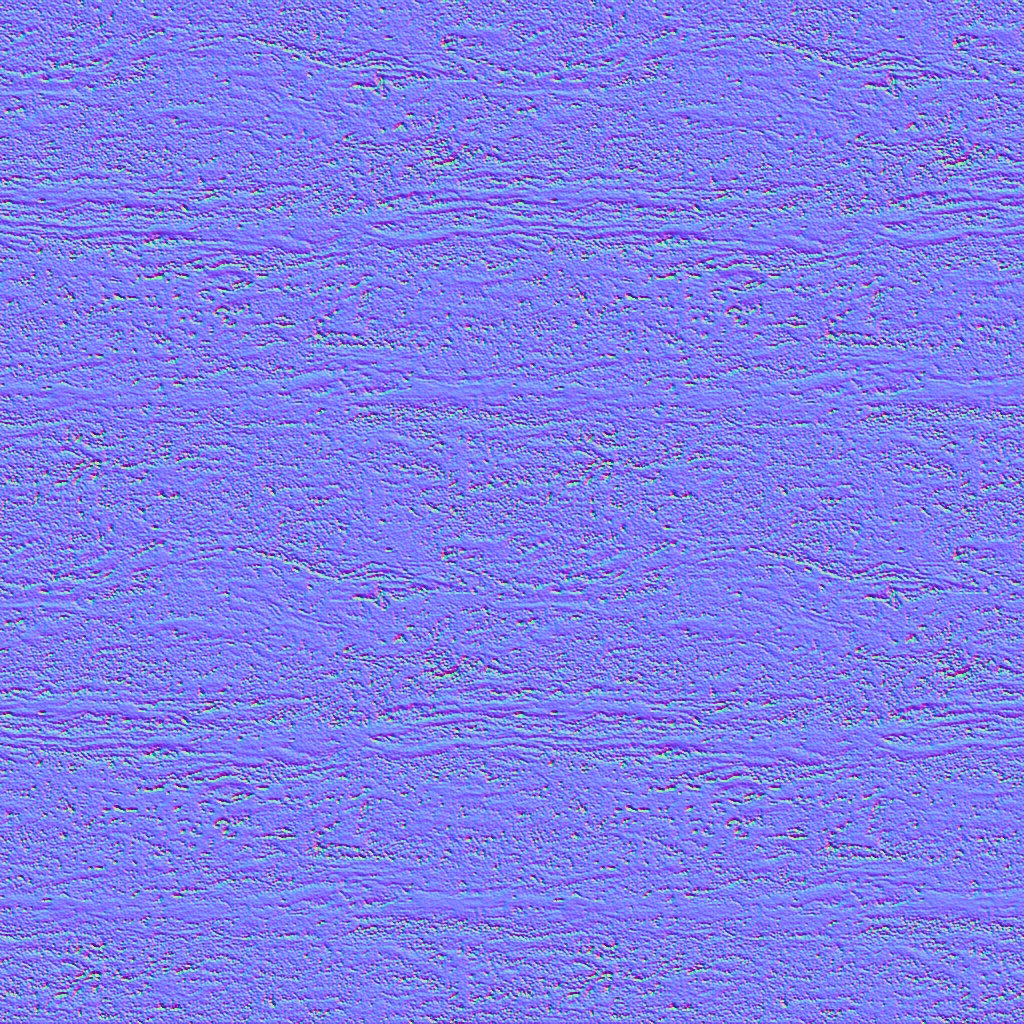 Normal
 Roughness
 Height
 AO
AOStart with a photo or sample
Upload a texture image, bring an AI-generated image from another tool, or explore an existing sample.
Build a complete material map set
Derive normal, roughness, height and ambient occlusion maps from your base image. Adjust the strength and finish as you go.
Look closely before you export
Inspect your material on a lit 3D shape, then switch to a repeating tile grid to spot visible seams.
Bring the maps into your scene
Download individual PNG files or a ZIP containing all five maps, your settings, and a short usage guide.
One surface. The right tools.
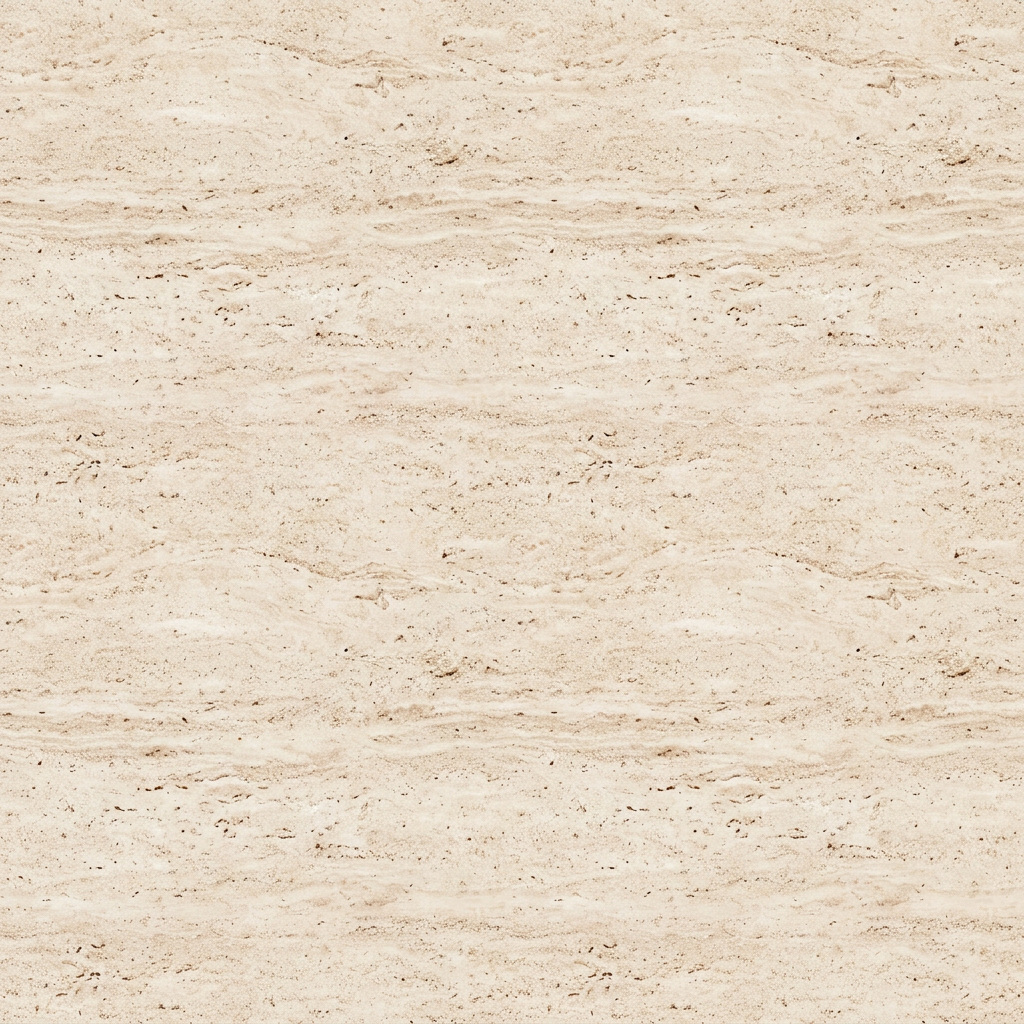 From texture to material
Texture Studio
Bring your own surface image or explore an existing AI-generated example. Create maps, inspect seams and export. Text-to-texture generation is not yet open.
Open the free studioBase colorNormalRoughnessHeightAOImage to PBR
Start with a texture you already have. Turn one base image into normal, roughness, height and AO maps, with controls for the finish.
Create material mapsOpenGL · DirectXNormal Map Generator
Convert image detail into surface relief. Adjust normal strength and choose OpenGL or DirectX orientation for your renderer.
Make a normal mapSeamless Texture Generator
Blend opposing edges and inspect the repeat. Tune the blend width to prepare a texture for tiling across a larger surface.
Refine a repeatTexture Seam Checker
Check the whole image in a repeating grid while keeping its aspect ratio. Find visible boundaries before using it in a scene.
Check your textureA closer look at your materials
A few practical guides to help you understand the maps, choose your settings, and check the result.
From one image to a material
See how base color, normal, roughness, height and AO work together, with a real travertine map set to inspect.
Read the guideChoose the right normal format
Understand the green-channel difference between OpenGL and DirectX, then choose the format your renderer expects.
Read the guide
Give your texture a repeat check
Learn what to look for in a tiled preview and why matching boundary pixels is only part of a clean repeat.
Read the guideFAQ
What can I make with Texel?
Upload a surface image or use a sample to create base color, normal, roughness, height and AO maps. Inspect repeating edges and download PNG files or a ZIP. Text-to-texture AI generation is not available in this public release.
Is the texture generator free?
Yes. Image-to-map conversion, seam blending, tiling and 3D previews, and PNG/ZIP downloads are free without an account. AI text generation is not yet open, and no AI credits are purchased or consumed by these tools.
Are the textures automatically seamless?
AI images are not guaranteed to tile perfectly. The seamless blend option softens opposing edges, and the adjustable repeat preview helps you check the result. Highly directional patterns and large features may still need manual cleanup.
Are these physically accurate PBR maps?
The additional maps are estimates derived from the base image. They are a practical starting point for material work, rather than measured physical properties. Adjust their strength and preview the result under your own lighting.
Can I use the maps in Blender, Unity or Unreal?
Yes. Maps export as standard PNG files. Use the base color with sRGB color space, and the other maps as non-color data. Select OpenGL or DirectX normal orientation to suit your renderer.
What happens to the images I upload?
Selected images are processed on your device and are not uploaded to our server or an AI provider. Download any files you want to keep before leaving the page. See our privacy page for hosting information.
Your next world starts here.
Start with a surface. Give it depth.
Bring the details into your next scene.